How To Print Your Own Labels. In today’s competitive business environment, printing your own labels can make a
What does Label Unwind and Feed Direction Mean? This is Why it Matters to Your Business.
When ordering custom labels, it’s easy to get caught up in the fun and ‘main’ parts: choosing the eye-catching colours, selecting a premium finish, and perfecting your branding. But before your labels go to print, there is one crucial technical detail you need to know and decide on: unwind and feed direction.
If you are applying labels by machine, getting this wrong can bring your production line to a halt. Even if you are applying labels by hand, this small detail can impact how much you pay for your order.
Here is everything you need to know about label unwind and feed directions, how to choose the right one, and why your label printer needs this information before giving you a final quote.
What Are Unwind and Feed Directions?
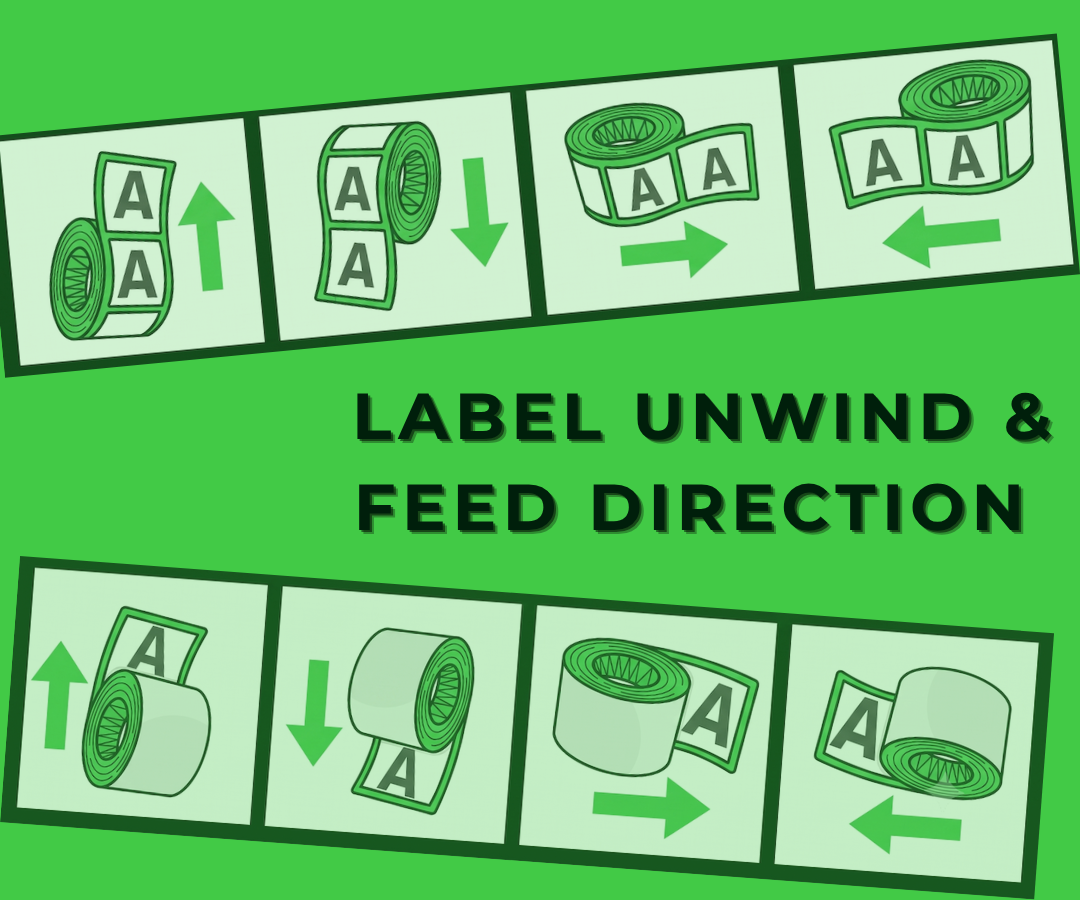
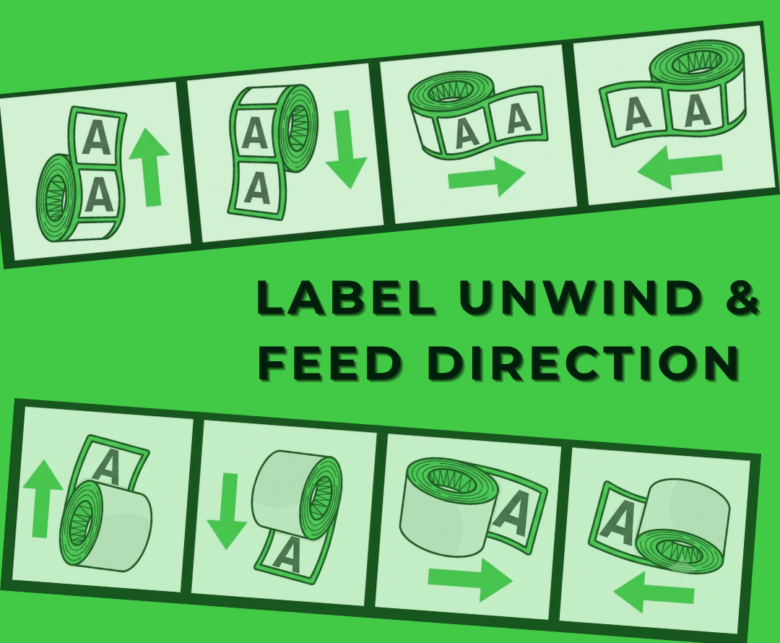
When your labels are printed, they are finished on a continuous roll. The feed direction (also known as the leading edge) refers to which part of the label comes off the roll first. The unwind direction dictates how the label is oriented on that roll and whether the labels face outward or inward.
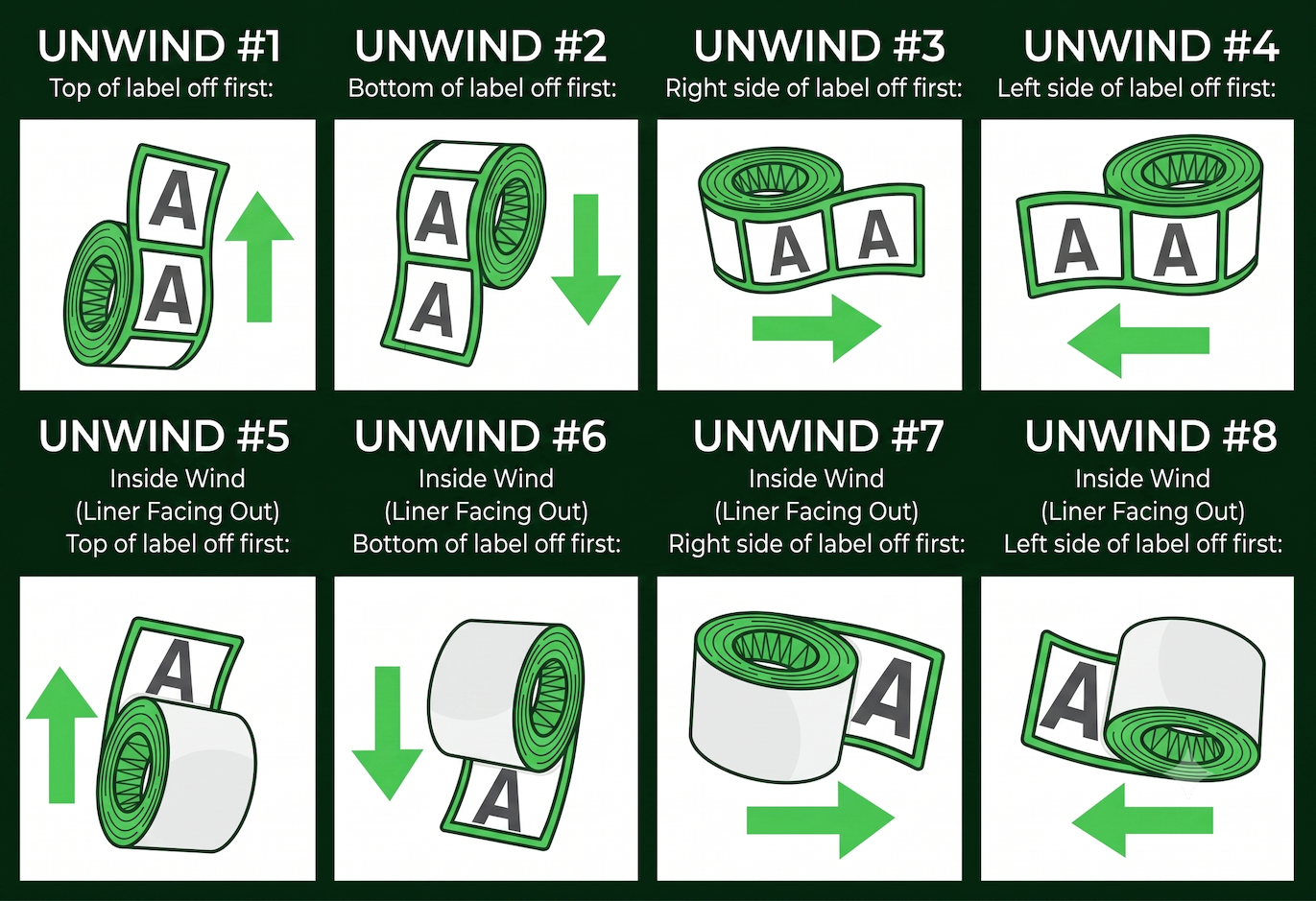
The label printing industry uses a standard numbering system from 1 to 8 to identify these directions:
Outside Wound (Labels facing out):
- Direction 1: Top edge feeds first
- Direction 2: Bottom edge feeds first
- Direction 3: Right edge feeds first
- Direction 4: Left edge feeds first
Inside Wound (Labels facing in):
- Direction 5: Top edge feeds first
- Direction 6: Bottom edge feeds first
- Direction 7: Right edge feeds first
- Direction 8: Left edge feeds first
Directions 1 through 4 are the most common in the industry, with Direction 3 (Right off first) and Direction 4 (Left off first) being highly popular for wraparound bottle labels.
How to Choose the Right Direction for Your Product
Choosing the right unwind direction comes down to one primary question: How are you applying the labels to your products?
1. Machine Application (Automatic or Semi-Automatic)
If you are using a label applicator machine, the unwind direction is critical. Machines are programmed to apply labels in one specific way. If you are feeding a bottle through a machine, the label needs to dispense exactly in sync with how the bottle rolls.
- What to do: Check your labelling machine’s user manual. It will specify exactly which unwind direction (1-8) it requires. If you feed a "Direction 1" roll into a machine that requires "Direction 3," your labels will end up applied sideways!
2. Hand Application
If you or your team are peeling and applying labels by hand, the unwind direction is less critical for the product itself, but it still matters for ergonomics and speed.
- What to do: Think about your team's workflow. If you are right-handed and holding a roll of labels, you might find it faster to pull the label off by its right or left edge rather than the top or bottom.
Why Your Label Supplier Needs to Know (Before They Quote!)
You might think that printing a 2" x 4" label costs the same regardless of which way it points on the roll. But the unwind direction can significantly impact the final cost of your project. Here’s why your label supplier needs this information upfront:
1. It Impacts How the Job is Quoted and Costed
Commercial label presses print on large, continuous webs (rolls) of material. The direction your label faces dictates how we fit them onto that material. For example, if you have a 2" wide by 6" tall label and chose a Top First feed, it might be that we can only fit two labels across the width of the material. But if you chose a Left First Feed, it could be that we could fit 5 labels across the width!
Fitting more labels across the web means less material waste, fewer rotations of the press, and a faster printing time—all of which drive the cost of your labels down. If you change your unwind direction after a quote has been generated, your supplier will have to recalculate the job, and the price will likely change.
2. It Determines Core Size and Roll Diameter
Label applicator machines don't just require a specific unwind direction; they also require the roll to fit perfectly on their spindles. The unwind direction goes hand-in-hand with two other technical specs we need to quote accurately: your required core size (the cardboard tube in the middle) and the maximum outer diameter (how thick the finished roll can be before it rubs against the machine).
3. Preventing Costly Reruns
If labels are printed in the wrong direction for your machine, they cannot be "rewound" into a different orientation without risking damage to the labels, and in many cases (like turning a horizontal feed into a vertical feed), it's physically impossible. The entire order would have to be reprinted. Confirming this upfront protects your investment and ensures your production line stays on schedule.
The Bottom Line
While unwind and feed directions might sound like technical jargon that you don’t need to worry about, they are the key to a seamless packaging process and the most accurate pricing.
Not sure which direction you need? We are here to help! If you are using a machine, just send us the make and model or a snapshot of the manual. Our printing experts will help you determine the most cost-effective and perfectly oriented setup for your next label order. Just call or drop us a message today.
Frequently Asked Questions - Printer Maintenance
01
What do the lines mean that are going through the print on my label?
If the line is in a diagonal direction, it is likely that the foil is creasing. Simply adjust the tension bar or clutch.
If the lines are vertical, then the printhead could either be dirty, or there could be dots or pixels on the printhead. If the latter is the case, you might need a new printhead. Contact us for us to diagnose the problem before ordering new parts.
Horizontal lines often indicate that the machine has stopped to make a cut. Usually, the machine will automatically try and blend this line out. Trying to alter the design of your label could help to solve the problem, however if there is a cut in the roller then it might need replacing. Contact our Technical Team if you think that this might be the case.
02
Nothing is printing onto my label but it’s going through the print process. What’s happening?
It’s likely that the ink foil is on the wrong way round, and it’s applying ink to the printhead instead of the label. Remove the ink foil, clean the printhead with some of our printhead wipes or isopropyl spray, and put the ink foil back on the other way around. The general rule of thumb when loading ink foil is dull side down, shiny side up!
03
I’ve got a warning notification on my printer. What should I do?
You will likely be seeing something along the lines of ‘No Gap Found / Media Error’, which could mean several things. The labels might be threaded up incorrectly, which will mean that they’re not going through the sensor. Take the roll of labels off and thread them up again, being sure to consult the diagram to make sure you’re doing this in the correct way for your machine. The sensor might not be in the correct position, so try adjusting it slightly to see whether it picks up on the labels coming through. Alternatively, the sensor might need re-calibrating. Either find the button on your machine that will do this for you or contact us for a little more assistance.
04
How do I clean the printhead on my label printer?
Take off the ink foil and get some of our printhead cleaning wipes, or some isopropyl spray and a cloth. Wipe the print area, removing any visible dirt or residue. Rethread the machine, reload the ink foil, and run a small job again to see whether print quality improves.
05
My printer isn’t communicating with my computer. What should I do?
The first thing to do is to check that the cable running between your computer and printer is connected properly, and in the correct port. Also ensure that the port on the computer is selected correctly (e.g. USB-C, USB), by navigating to your settings. You should also make sure that you’re trying to send a job to the correct printer, and not another that is synced with your computer.
Stay Informed with Soabar
Soabar Supports: Leaways School Coffee Labels
Soabar Supports: Leaways School Coffee Labels One of the things that we absolutely love about working in the print industry...
Soabar achieves FSC® ‘Chain of Custody’ Certification
Soabar achieves FSC® ‘Chain of Custody’ Certification We are delighted to announce that we recently gained our FSC® (Forest...