Quote Calculator

Seamless Artwork Approvals: ProofScope

We’re excited to share that we're now using ProofScope, an online platform designed to make artwork proofing faster, clearer, and more reliable for our customers.

You can review, comment, and approve designs online with complete visibility, helping your team to reduce errors, speed up approvals, and deliver end results with confidence.

Incorporating ProofScope into our workflow reinforces our commitment to making ordering labels from us a sleek, hassle free and efficient process. We put the customer's experience of working with us the top of our priority list, and we believe that introducing ProofScope will only improve this further. Approving artwork and seeing a visual of your finished product has never been simpler.

For a quick visual guide, you can watch our ProofScope Video Tutorial here.

Proof Scope

How to use ProofScope

1. Accessing the Portal

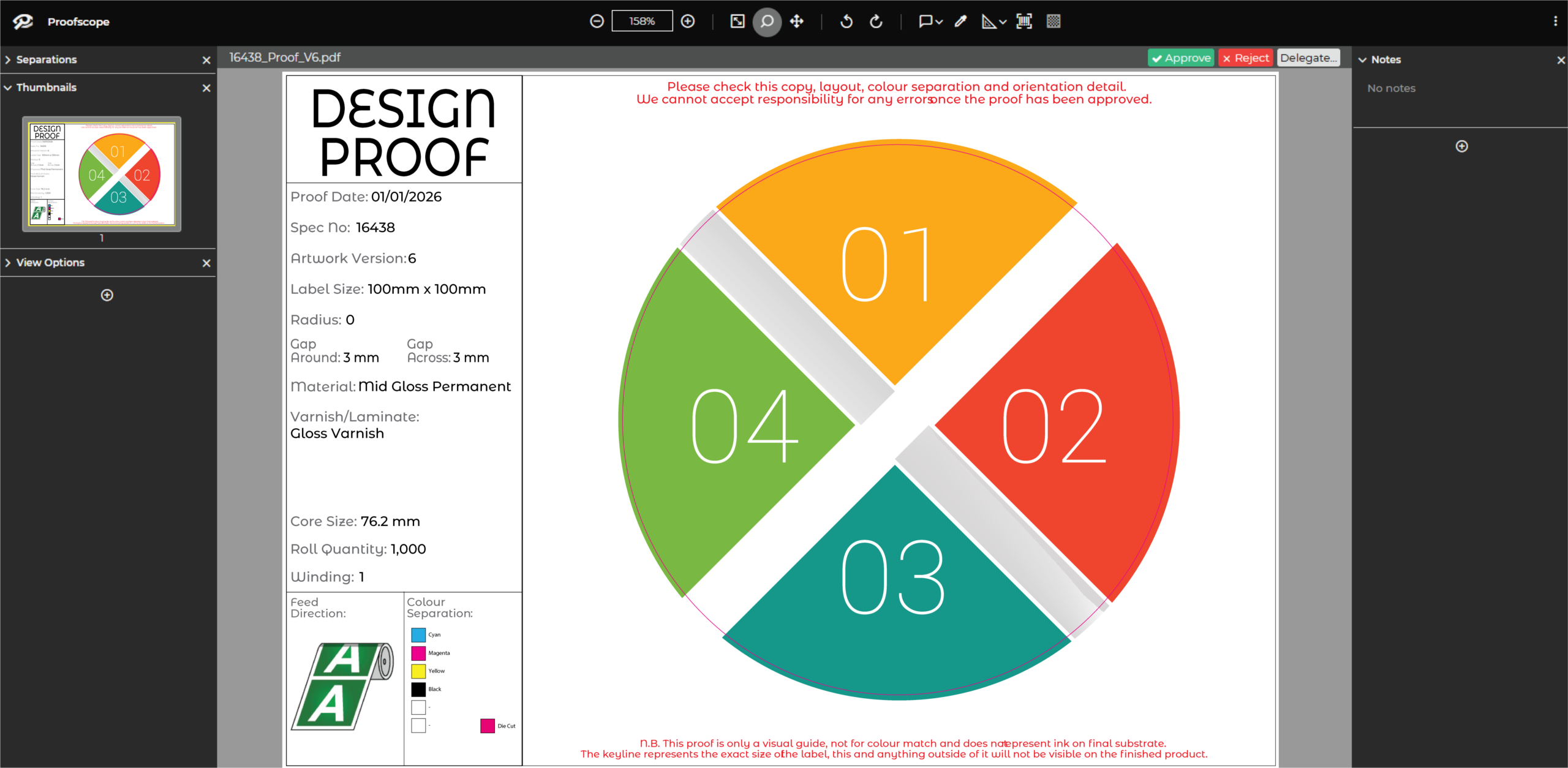
After clicking the link in your email, your web browser will load the approval portal. From here, you can see the artwork that requires your approval. Simply click on the “eye” icon to launch ProofScope, our dedicated online approval platform.

1_Approval_List
2_ProofScope

ProofScope Approval

2. Reviewing Your Artwork

Once ProofScope opens, your artwork will display on screen. From within this window, you have a suite of tools at your disposal:

  • Zoom in and out in high-resolution (up to 800%).
  • Check barcodes and measure distances.
  • Verify colors.
  • Approve or reject the artwork.


3. Requesting Changes- Rejections & Notes

If changes are needed, leaving feedback is simple:

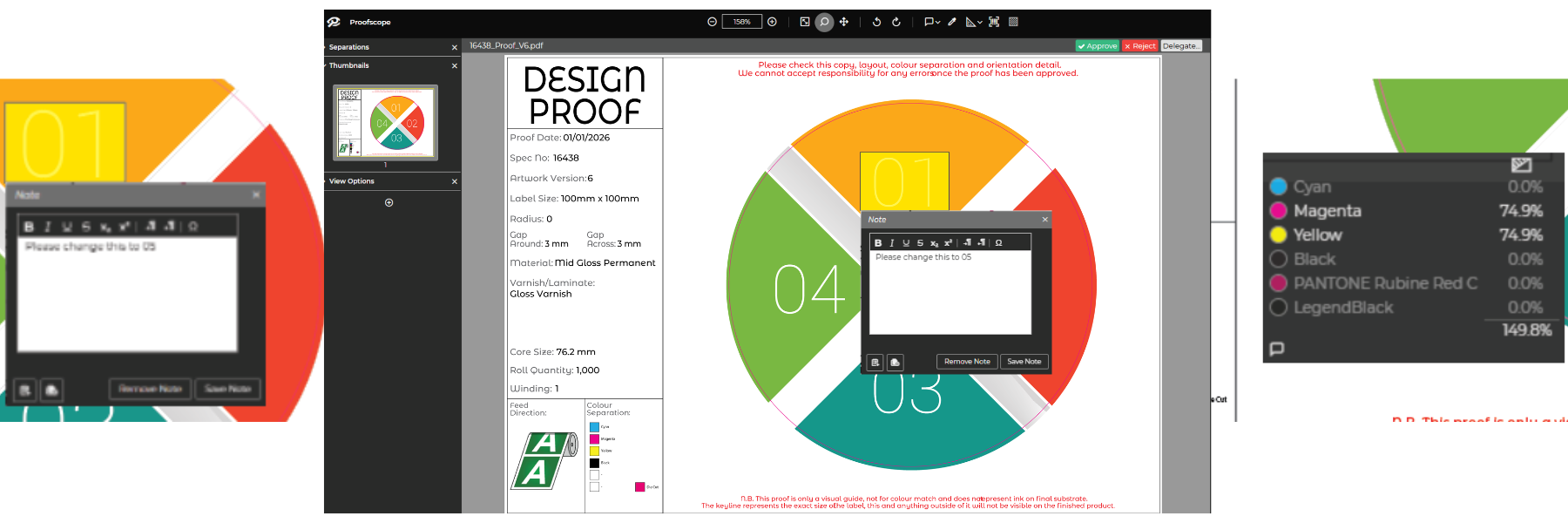
  • Click on the note icon at the top of the screen, then click directly onto the label.
  • Alternatively, use the rectangle, oval, or freehand tools to draw a box over the specific part of the artwork you want to highlight.
  • Type your note in the box and click Save.

These notes are fed directly back to the artwork studio so they can quickly send out an amended proof for you.

Images

For Your Records

4. Download and Keep a Copy

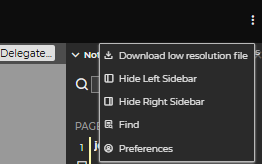
You may want to keep a copy of the artwork for your own records. While you can request a copy at any time, you can also download one directly from the portal. Just click on the three little dots in the top right-hand corner of the screen and select Download.

5_download_proof

The Perks of ProofScope

Faster, More Accurate Proofing

Streamline the approval process by giving your team and customers one central place to review, comment, and approve artwork. Eliminate long email chains, reduce confusion, and ensure everyone is working from the latest version.

Complete Visibility & Control

Never lose track of a project again. ProofScope provides a clear audit trail of revisions and approvals, giving you full visibility from the first proof through to final sign-off. This reduces risk and helps prevent costly production errors.

Clear Collaboration

Keep communication simple and transparent. Customers, designers, and account managers can leave comments directly on proofs, making feedback easy to understand and quick to action. Every change is tracked, helping projects move forward with confidence.

Save Time & Reduce Costs

Speed up approvals without compromising quality. By automating notifications, managing artwork versions, and keeping all project information in one place, ProofScope helps reduce delays, minimize rework, and get products to market faster.

We're Ready. Are You?

With ProofScope now integrated into our workflow, ordering your labels from us has never been easier or more reliable.

We've invested in this technology because we are committed to providing you, our customer, with a seamless, stress-free experience—from your initial design concept right through to the final printed product.

Experience the difference a truly streamlined approval process makes. Partner with us for your next project and let us bring your vision to life with precision, speed, and absolute confidence. Contact us today to get started.

Frequently Asked Questions - Printer Maintenance

01

What do the lines mean that are going through the print on my label?

If the line is in a diagonal direction, it is likely that the foil is creasing. Simply adjust the tension bar or clutch.

If the lines are vertical, then the printhead could either be dirty, or there could be dots or pixels on the printhead. If the latter is the case, you might need a new printhead. Contact us for us to diagnose the problem before ordering new parts.

Horizontal lines often indicate that the machine has stopped to make a cut. Usually, the machine will automatically try and blend this line out. Trying to alter the design of your label could help to solve the problem, however if there is a cut in the roller then it might need replacing. Contact our Technical Team if you think that this might be the case.

02

Nothing is printing onto my label but it’s going through the print process. What’s happening?

It’s likely that the ink foil is on the wrong way round, and it’s applying ink to the printhead instead of the label. Remove the ink foil, clean the printhead with some of our printhead wipes or isopropyl spray, and put the ink foil back on the other way around. The general rule of thumb when loading ink foil is dull side down, shiny side up!

03

I’ve got a warning notification on my printer. What should I do?

You will likely be seeing something along the lines of ‘No Gap Found / Media Error’, which could mean several things. The labels might be threaded up incorrectly, which will mean that they’re not going through the sensor. Take the roll of labels off and thread them up again, being sure to consult the diagram to make sure you’re doing this in the correct way for your machine. The sensor might not be in the correct position, so try adjusting it slightly to see whether it picks up on the labels coming through. Alternatively, the sensor might need re-calibrating. Either find the button on your machine that will do this for you or contact us for a little more assistance.

04

How do I clean the printhead on my label printer?

Take off the ink foil and get some of our printhead cleaning wipes, or some isopropyl spray and a cloth. Wipe the print area, removing any visible dirt or residue. Rethread the machine, reload the ink foil, and run a small job again to see whether print quality improves.

05

My printer isn’t communicating with my computer. What should I do?

The first thing to do is to check that the cable running between your computer and printer is connected properly, and in the correct port. Also ensure that the port on the computer is selected correctly (e.g. USB-C, USB), by navigating to your settings. You should also make sure that you’re trying to send a job to the correct printer, and not another that is synced with your computer.

Stay Informed with Soabar

Proof Scope
ProofScope – How To Use

We’re excited to share that we're now using ProofScope, an online platform designed to make artwork proofing faster, clearer, and...

Untitled (120 x 50 mm) (120 x 65 mm)
Job Posting: Overprinting Operator

Job Title: Overprinting Operator Location: Soabar Ltd Job Type: Preferably Full-time, Permanent, However Flexible Working & Part-time (4 days a...

about
Label Finishing Operator

Label Finishing Operator Grade: Operative Reports to: Production Manager Full time position 37.5 hours per week Objective: To assist in...