Digital Label Printing from our Konica Minolta C71cF Digital Label Press In November 2016, Soabar entered into a strategic business...
Are Event and Exhibition Badges Recyclable? The Green Guide to Event Essentials
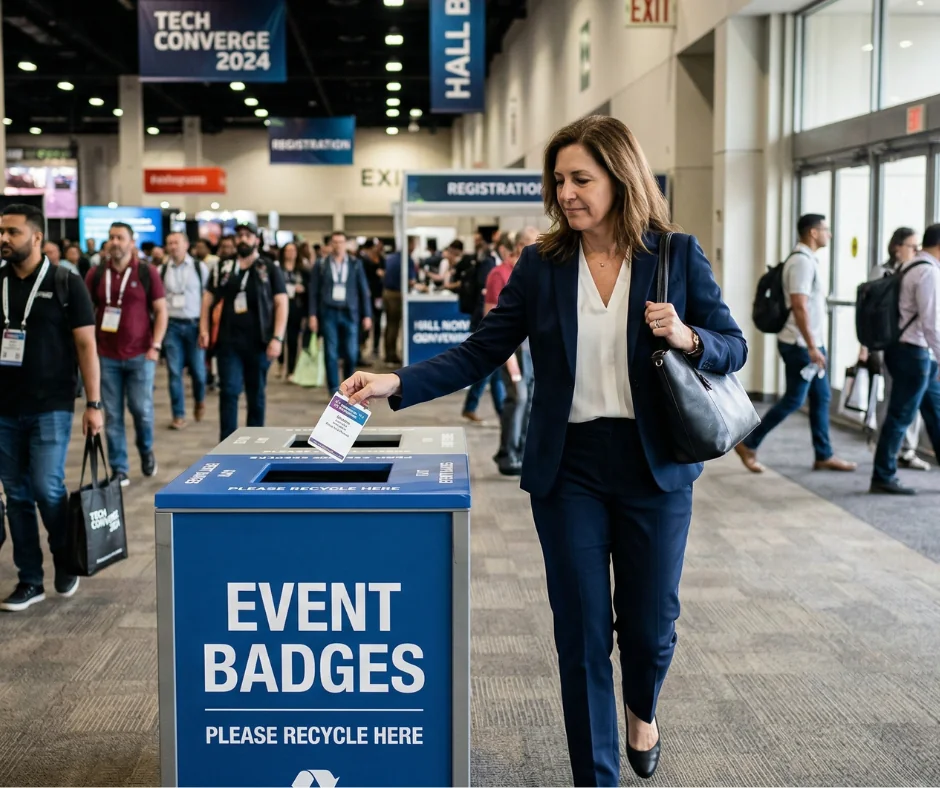
Sustainability is no longer a "nice-to-have" feature; it’s a core requirement for modern event planning. As regular attendees and exhibitors at events, we’ve certainly seen the aftermath of a multi-day exhibition—the bins overflowing on your way out with tonnes of discarded plastic and paper set to go to landfill.
If you're looking to reduce your event’s carbon footprint, your attendee badge is a great place to start. But the answer to "is it recyclable?" isn't always a simple yes or no. It depends entirely on the materials you choose and how you manage them post-use.
The Material Breakdown
To understand recyclability, you need to look at what the badge is made of first. Here are the most common material options:
Card Badges (The Eco-Friendly Champion)
Card badges are generally the most sustainable choice. Because they are fibre-based, they can usually go straight into standard paper recycling streams.
- Single-Sided Card: Highly recyclable.
- Double-Sided/Laminated Card: While double-sided card is perfectly fine, some older "plastic-coated" cards use a thin film that can clog recycling machinery. Our card stock is designed to be sturdy without the need for non-recyclable plastic coatings, making them 100% recyclable.
Self-Adhesive Badges
These are a bit trickier. While the "paper" face of the badge is often recyclable, the adhesive backing and the silicone release liner (the waxy paper you peel the badge off of) are usually not accepted in standard recycling facilities.
The Verdict: Great for speed, but harder on the planet. If you go this route, look for "wash-away" or "recyclable" adhesives. Speak to us for more information.
Choosing the Right Printing Tech for the Planet
Sustainability also involves reducing waste during the production phase, the part that Badge Wave handle.
By using our pre-printed badge service, you benefit from the machine efficiency of the Bobst Mouvent LB 702-UV. This press uses UV-curable inks which are more environmentally friendly than traditional solvent-based inks, and because we print in bulk, there is significantly less material "startup" waste compared to small-batch home printing.
When you overprint on-site using a Direct Thermal printer, you aren't using ink ribbons or toner cartridges that eventually end up in the trash. It’s a "lean" way to manage variable data without the plastic waste of cartridges.
Don’t Forget the Accessories!
A recyclable badge is only half the battle. You need to consider what it’s hanging on:
- Bamboo or RPET Lanyards: Instead of virgin polyester, choose lanyards made from bamboo fibres or RPET (recycled plastic bottles).
- Metal vs. Plastic Clips: Metal "lobster" clips are easier to separate and recycle than plastic moulded clips.
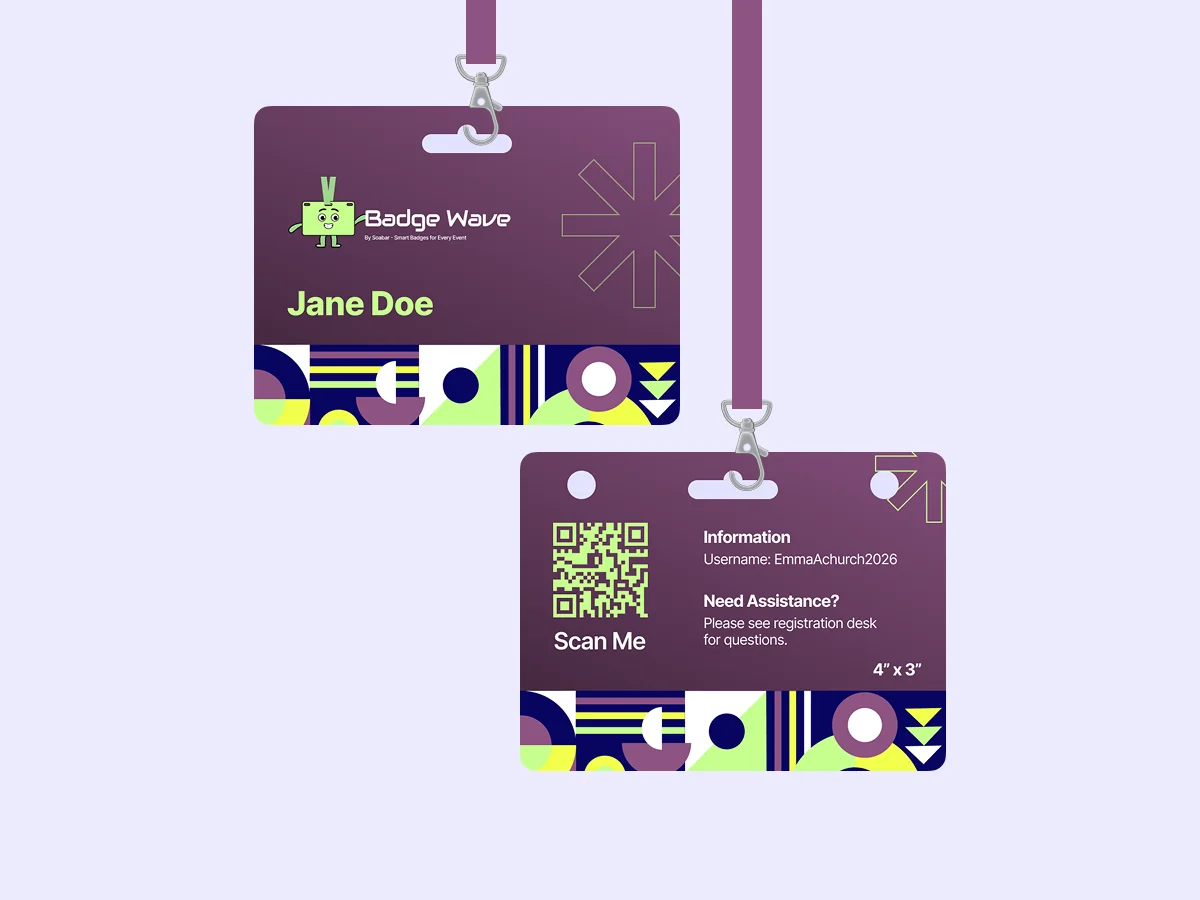
- The "No-Pouch" Strategy: By choosing a thick card stock with a Euro Slot or Triple Slot, you eliminate the need for a plastic holder entirely. The badge is strong enough to stand on its own!
How to Manage the "End-of-Life"
Even a 100% recyclable badge won't get recycled if it’s thrown in a general waste bin.
To ensure your event is truly green, try these three steps:
1. Collection Stations:
Place "Badge Return" bins at every exit.
2. Education:
Use a small corner of your badge design (perhaps on that 4" x 6" double-sided real estate!) to print a "Please Recycle Me" icon.
3. Seperation:
Encourage attendees to separate the badges from the lanyards, and place them in different bins on their way out of the event.
Alternatively, have your team spend 30 minutes after the event doing this at the end of each day.
Separated materials are much more valuable to recycling centres than a tangled mess of cloth and card.
Frequently Asked Questions - Printer Maintenance
01
What do the lines mean that are going through the print on my label?
If the line is in a diagonal direction, it is likely that the foil is creasing. Simply adjust the tension bar or clutch.
If the lines are vertical, then the printhead could either be dirty, or there could be dots or pixels on the printhead. If the latter is the case, you might need a new printhead. Contact us for us to diagnose the problem before ordering new parts.
Horizontal lines often indicate that the machine has stopped to make a cut. Usually, the machine will automatically try and blend this line out. Trying to alter the design of your label could help to solve the problem, however if there is a cut in the roller then it might need replacing. Contact our Technical Team if you think that this might be the case.
02
Nothing is printing onto my label but it’s going through the print process. What’s happening?
It’s likely that the ink foil is on the wrong way round, and it’s applying ink to the printhead instead of the label. Remove the ink foil, clean the printhead with some of our printhead wipes or isopropyl spray, and put the ink foil back on the other way around. The general rule of thumb when loading ink foil is dull side down, shiny side up!
03
I’ve got a warning notification on my printer. What should I do?
You will likely be seeing something along the lines of ‘No Gap Found / Media Error’, which could mean several things. The labels might be threaded up incorrectly, which will mean that they’re not going through the sensor. Take the roll of labels off and thread them up again, being sure to consult the diagram to make sure you’re doing this in the correct way for your machine. The sensor might not be in the correct position, so try adjusting it slightly to see whether it picks up on the labels coming through. Alternatively, the sensor might need re-calibrating. Either find the button on your machine that will do this for you or contact us for a little more assistance.
04
How do I clean the printhead on my label printer?
Take off the ink foil and get some of our printhead cleaning wipes, or some isopropyl spray and a cloth. Wipe the print area, removing any visible dirt or residue. Rethread the machine, reload the ink foil, and run a small job again to see whether print quality improves.
05
My printer isn’t communicating with my computer. What should I do?
The first thing to do is to check that the cable running between your computer and printer is connected properly, and in the correct port. Also ensure that the port on the computer is selected correctly (e.g. USB-C, USB), by navigating to your settings. You should also make sure that you’re trying to send a job to the correct printer, and not another that is synced with your computer.
Stay Informed with Soabar
Soabar and the National Citizen Service (NCS)
Soabar and the National Citizen Service (NCS) Recently, Soabar has become a proud supporter of the National Citizen Service (NCS)...
Soabar Interviews… Jon Nichols, Sales
Soabar Interviews… Jon Nichols, Sales Welcome back to our series of blog posts that aim to ensure that you get...